Wipe every device before it leaves your premises, and treat a simple delete or a factory reset as the minimum, not the finish line. Back up what you need, remove accounts, overwrite or sanitise the storage, destroy any drive that cannot be wiped, record what you did, and only then hand the equipment over for collection. Once the data is secured, we collect the e-waste from your office or site across Melbourne, so the whole job stays in one booking.
This guide is for business owners, office and property managers, construction firms and tenants clearing out a lease. It is written for people who are not IT specialists, so each term is explained where it first appears.
TL;DR
- Deleting files and emptying the recycle bin does not remove data from a device. Even a factory reset can leave data recoverable, so use an overwriting program where the data matters.
- Australian businesses covered by the Privacy Act must take reasonable steps to destroy personal information they no longer need, and ordinary garbage or recycling collection does not count as a reasonable step for paper records.
- If a drive cannot be removed or wiped, the equipment should be destroyed so the media cannot be recovered.
- Keep a simple disposal record of each device and the method used, then hand the cleared equipment to a collection service.
- Book the pickup after the wipe, not before. Devices that are cleared, labelled and grouped are faster to collect.
Table of Contents
- Why deleting files and resetting are not always enough
- What the privacy rules expect of you
- Step-by-step: wiping a working computer, phone or tablet
- Devices that will not turn on or cannot be wiped
- Printers, copiers and other hidden storage
- Keep a record of what you did
- Handing over: choosing who takes the equipment
- E-waste collection after the wipe
- A short checklist for a clean-out day
- Frequently asked questions
- Sources
Why deleting files and resetting are not always enough
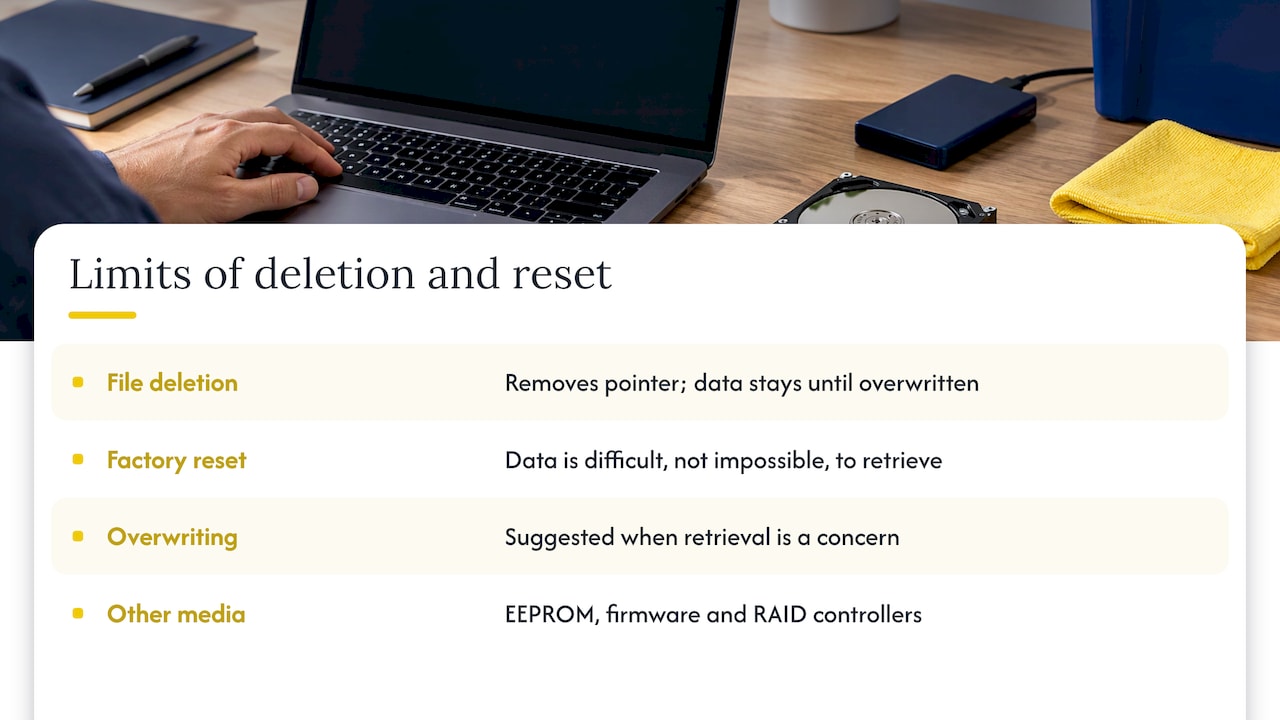
When you delete a file, the device usually removes the pointer to it, not the data itself. The data stays on the drive until something overwrites it. That is why a laptop that looks empty can still give up emails, client lists and saved passwords to someone with the right software.
The Australian Cyber Security Centre (ACSC), the government’s cyber security agency, tells small businesses to remove all information from business devices before selling, trading or throwing them away, so nobody can reach emails, files and other business data. Its example is a factory reset, which is the baseline most people think of.
A factory reset is a good first step, but it has limits. The US Department of Energy explains that a reset makes data difficult, but not impossible, to retrieve, and suggests an overwriting program if you are concerned. For a device that held payroll files, customer details or medical or financial records, you are concerned.
The problem is also wider than the main drive. PwC Australia notes that modern devices hold data across many media types, including EEPROM, firmware and RAID controllers. A RAID controller manages several drives working together in a server or network storage box. In practice, a thorough process covers every place a device can keep data, not just the laptop’s main disk.
What the privacy rules expect of you
If your business is covered by the Privacy Act 1988 (most businesses with annual turnover above $3 million, plus some smaller ones such as health providers), Australian Privacy Principle 11 applies. It requires you to protect personal information and to destroy or de-identify it when you no longer need it.
The Office of the Australian Information Commissioner (OAIC) says that reasonable steps for electronic information depend on the hardware, and include sanitisation, or physical destruction where sanitisation is not possible. Sanitisation means making the data unrecoverable by overwriting or otherwise purging the media.
Three practical points follow from the same OAIC guidance:
- Paper counts too. For hard copy records the OAIC lists pulping, burning, pulverising, disintegrating or shredding, and says that disposal through ordinary garbage or recycling collection is not a reasonable step. If an office clear-out includes filing cabinets, shred the contents first.
- Outsourcing does not outsource the duty. Where you hand information handling to a third party, reasonable steps include verifying that the third party has irretrievably destroyed the data. The simplest way to meet that is to make sure the data is already gone when the equipment leaves your hands.
- Hardware matters. A laptop with a solid-state drive, a phone with encrypted storage and a multifunction printer with an internal disk are not wiped the same way.
This article is general information, not legal advice. If you handle health, financial or other sensitive records and are unsure what applies to you, ask your lawyer or privacy adviser, and check the OAIC’s site for the current guidance.
Step-by-step: wiping a working computer, phone or tablet
Work through this list per device. It takes about 20 to 30 minutes for a laptop or phone, longer for a large drive being overwritten, which can run unattended.
1. Back up what you still need
Copy files you need to a business cloud account or an external drive that stays with you. Do this before anything else, because every later step is irreversible. Check shared folders and email archives as well as the desktop, since people often keep important files in odd places.
2. Sign out and remove accounts and locks
Sign out of email, cloud storage, password managers and messaging apps. Turn off device-tracking and activation locks such as Find My on Apple devices or the Google account lock on Android, otherwise the device may be unusable and the account stays tied to it. Remove the device from your management or mobile device management (MDM) console if you use one. Where it goes wrong: a phone reset while still signed in to a personal account can trigger a lock that stops reuse, and it is much harder to fix after the device has gone.
3. Encrypt first where you can
If the device supports it, switch on storage encryption before the reset. Encrypted data that is then reset is far harder to recover than unencrypted data. Many current phones are encrypted by default, but older laptops often are not, so check the settings.
4. Reset, then overwrite where the data is sensitive
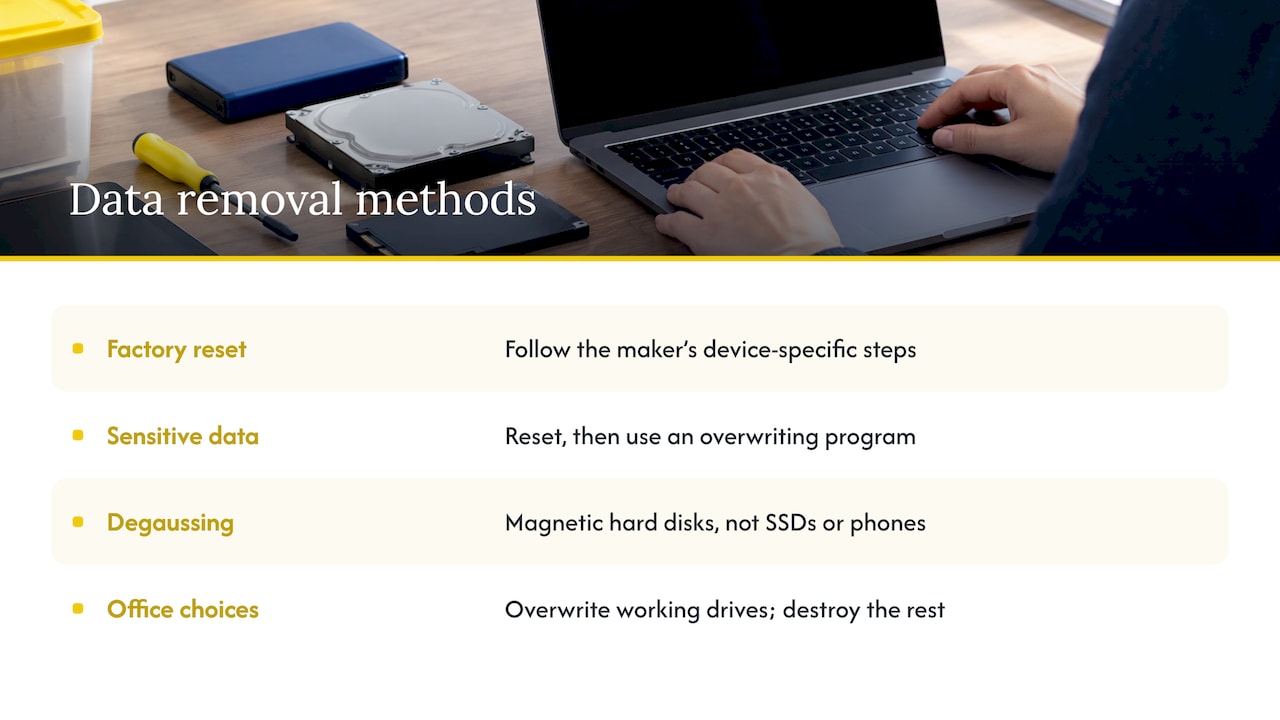
Use the device maker’s factory-reset instructions. The Department of Energy advice is to back up first and then follow the device-specific reset steps. For computers that held personal, financial or client information, follow the reset with an overwriting program.
The State Records Office of Western Australia lists the common techniques for digital media as clearing or overwriting, degaussing, physical destruction and purging. Degaussing uses a strong magnetic field and works on magnetic hard disks, not on solid-state drives or phones. For most offices the realistic choices are overwriting for working drives and physical destruction for the rest.
5. Check the result
Restart the device. It should show the first-time setup screen or no operating system at all. Confirm that no accounts, saved Wi-Fi networks or files remain. Where it goes wrong: some devices keep a recovery partition, or a second internal drive that the reset never touched. If a laptop has two drives, handle both.
6. Remove labels and markings
Peel off asset tags, name labels and any stickers linking the device to your business, its owner or its earlier use. The ACSC’s Information Security Manual lists this as the step after the data is secured, and the same guidance asks for a formal decision to release the sanitised or destroyed device for recycling. In a small business, that decision can be as simple as one named person signing off the disposal list.
Chargers, cases and loose accessories do not hold data. If you are clearing a drawer of them, phone case recycling in Australia covers what happens to that part of the pile.
Devices that will not turn on or cannot be wiped
A dead laptop, a tablet that has not powered up in years or a server with a failed controller still holds data on its storage chips or platters. You cannot reset what you cannot start.
The ACSC’s Information Security Manual sets the rule: any media inside IT equipment should be removed or sanitised, and if it cannot be, the equipment must be destroyed. The Western Australian State Records Office describes the destruction techniques in the same terms: incineration, melting, pulverisation, cutting or crushing, so that the media is no longer recoverable.
In practice:
- Drive can be removed (most desktops, many laptops): take it out, then either wipe it in another machine or destroy it. Keep the drive separate from the shell.
- Drive is soldered or cannot be reached (many phones, tablets and thin laptops): if it will not power on to be reset, treat the whole device as one that must be destroyed.
- Mixed batch: separate the dead devices from the wiped ones and label each pile, so nobody has to guess what was done.
This is a safety and compliance point, not a disposal inconvenience: a dead device is the one most likely to be forgotten in a cupboard, and the one that still carries your data.
Printers, copiers and other hidden storage
Office equipment holds data more often than people think. Multifunction printers and copiers can store scanned documents on an internal disk, and meeting-room screens, phone systems and network switches keep credentials and configuration. Add these to your device list before a clean-out, and check the maker’s instructions for a factory or secure erase option. Our guides on secure office printer disposal and office appliance disposal go through the equipment you are likely to find on a floor, and batteries have their own handling rules on our battery disposal page.
Keep a record of what you did
If a client or regulator ever asks what happened to a laptop that held their data, a one-page list answers the question in a minute. Without it, you are relying on memory.
Government guidance shows what a good record contains. The Digital Transformation Agency tells agencies to document the sanitisation process, including methods used and verification results, and to keep a record of devices that are donated, with the security measures taken before donation. You are not a government agency, but the same habit works for any business.
A workable disposal register has one row per device:
| Column | Example entry |
|---|---|
| Device and serial number | Laptop, make and model, serial number |
| Owner or department | Accounts team |
| Data method | Encrypted, reset and overwritten, or drive destroyed |
| Checked by and date | Name and date of the restart check |
| Handed over | Date and collector |
When a drive has been physically destroyed, keep any certificate or written confirmation with the register. Store the register with your other IT records, not on the devices you are disposing of.
Handing over: choosing who takes the equipment
Before you outsource any disposal, the Western Australian State Records Office advises a risk assessment to confirm the contractor’s disposal procedures comply with the guidelines, and an evaluation of whether to sanitise internally or outsource. For a business, that comes down to three questions:
- Has the data already been wiped or the drive destroyed before pickup?
- Will the equipment be recycled as e-waste rather than put in general waste?
- Is there a written list of what left the building?
If your answer to the first is yes, the collection becomes a logistics job: loading, transporting and recycling the equipment on time and without mess in the building. That is where we fit. Our e-waste collection in Melbourne service handles the removal of electronic waste from offices and sites, and our guide on disposing of e-waste in Melbourne explains the options in more detail.
If you are writing or tightening a company policy, our article on making an IT asset disposal policy audit ready sets out the steps procurement teams look for.
E-waste collection after the wipe
We remove e-waste for commercial and residential clients across Melbourne, including office computers, screens and other electronics, as one-off jobs or regular collections. If the electronics are part of a bigger clear-out, such as an office cleanout, a make-good or a strip-out, we take the furniture, general junk and e-waste in the same visit.
A few facts about how we work:
- We offer a carbon-neutral option for disposal.
- You get real-time notifications on arrival, and a credit if we are late.
- We promise no mess and no damage to property, based on our experience in all types of Melbourne commercial buildings.
- We beat any written quote by 5%.
To book, send us the details through our quick quote page with a rough count of devices and where they are. Have your register ready so the pickup matches your list.
A short checklist for a clean-out day
Before the collection team arrives:
- All devices backed up, signed out and reset, with sensitive machines overwritten.
- Dead or unwipeable devices separated and their drives removed or marked for destruction.
- Asset tags and name labels removed.
- Paper records shredded rather than left in boxes for general removal.
- Register completed, one named person has approved the release.
- Devices grouped by location and easy to reach, with the lift or loading dock booked if you are in a CBD tower.
Tenants finishing a lease should do the same for any equipment left by a previous occupier. If you do not know what a device held, treat it as sensitive.
Frequently asked questions
Is it necessary to wipe a computer before recycling it?
Yes. The ACSC advises businesses to remove all information from devices before they are sold, traded or thrown away. For businesses covered by the Privacy Act, destroying or de-identifying personal information you no longer need is also a legal duty under APP 11, so wiping is part of compliance as well as good practice.
Is a factory reset enough?
It is a sound first step, but it can leave data recoverable with the right tools. For a device that held client, staff or financial data, follow the reset with an overwriting program, or destroy the drive. Encrypting the storage before the reset adds another layer.
What do I do with a device that will not turn on?
Remove the drive if you can and wipe or destroy it. If the storage cannot be removed or sanitised, the ACSC’s guidance is that the equipment must be destroyed so the media cannot be recovered. Keep these devices separate from the ones you have wiped.
Do I need a record of what I wiped?
It is not a step the law spells out for every business, but it is what lets you show that you took reasonable steps. A list of each device, the method used, who checked it and the handover date is enough for most small and medium businesses.
Can you collect the equipment from my office once the data is gone?
Yes. We collect e-waste from offices and commercial sites across Melbourne as a one-off or regular job, and can include furniture and general clear-out waste in the same booking. Send the details through our quote page.
Sources
- ACSC Small Business Cyber Security Guide
- PwC Australia: Device Data Sanitisation
- US Department of Energy: Before you recycle your device
- State Records Office of Western Australia: Records Retention, Disposal and Destruction
- ACSC Information Security Manual
- OAIC: Chapter 11, APP 11 Security of personal information
- Digital Transformation Agency: Sustainable device management guide